Tuesday, 23 February 2016

How to Create OVA File in PT8.55


1. Create a copy of the zip downloaded files from Oracle Support site;

2. Unzip 1st zip archive from your PUM VirtualBox option; in same folder you should have bootstrap DPK setup and all the zip files downloaded from Oracle Support site;

3. Run PowerShell in Administrator mode;

4. In case you do not have permissions to run PowerShell scripts, run the following command:
Set-executionpolicy remotesigned

5. From PowerShell, navigate to the setup folder(bootstrap DPK folder) from the location where you have unzipped the 1st archive(for example: C:\ PUM16\setup where “PUM16” is the main folder with the downloaded zip files ;

6. Run .\pst-dpk-setup.ps1 script file and it will create your .ova file


7. Import ova file into Virtual box;


8. Create a share folder for this virtual machine:


9. Follow the instruction from the Virtual machine;


10. After login with root user, navigate to the shared folder and run the file script:
./psft-dpk-setup.sh


11. Follow the rest of the instructions from the installed Virtual Machine.


Wednesday, 17 February 2016

Structure of PSACCESSPROFILE table in PT8.55 and how to update SYSADM password in PSACCESSPROFILE table?


Structure of PSACCESSPROFILE table in PT8.55 and how to update SYSADM password in PSACCESSPROFILE table?


A new table PSACCESSPROFILE has been created with new longer fields and the addition of fields IN PT 8.55.The PSACCESSPRFL is deprecated and no longer used.
PSACCESPRFL table was replaced with the PSACCESSPROFILE table capable of providing a more secure implementation.

Desc PSACCESSPROFILE
Name               Null     Type          
------------------ -------- ------------------
SYMBOLICID         NOT NULL VARCHAR2(8 CHAR)
STM_ACCESS_ID      NOT NULL VARCHAR2(254 CHAR)
STM_ACCESS_PSWD    NOT NULL VARCHAR2(254 CHAR)
STM_ACCESS_PART1   NOT NULL VARCHAR2(128 CHAR)
STM_ACCESS_PART2   NOT NULL VARCHAR2(128 CHAR)
ENCRYPTED          NOT NULL NUMBER(38)    
STM_ENCRYPTION_VER NOT NULL NUMBER(38)    
VERSION            NOT NULL NUMBER(38)

To update SYSADM password using PSACCESSPROFILE table run below SQL

UPDATE PSACCESSPROFILE SET STM_ACCESS_ID = 'SYSADM', SYMBOLICID = 'SYSADM1', STM_ACCESS_PSWD = 'SYSADM', VERSION = 0, ENCRYPTED = 0;

Running ENCRYPT_PASSWORD * after update statement is mandatory now.

Please use the normal provided methods for encrypting Passwords and those fields will contain the correct information to ensure properly functioning security of your environments Access ID/Password. The proper methods are:

1. Application Designer -> Tools -> Miscellaneous Defintions -> Access Profiles.
2. CHANGE_ACCESS_PASSWORD via Datamover Bootstrap mode.
3. ENCRYPT_PASSWORD *; via Datamover Boostrap mode. (note: this will encrypt any row that has ENCRYPTED field = 0)


Another new feature is

SHA-2 Hash Algorithm and 4096 Key size Support
When generating private keys for application server-based digital certificates, by default PT 8.55 uses the SHA-256 with RSA encryption algorithm and the 4096 key size. When using PSKeyManager to generate private keys for web server-based digital certificates, the default signing algorithm is SHA-256 with RSA encryption. In addition, the PSOPRDEFN table features a new column for SHA-2 hashed passwords.

Thursday, 11 February 2016

Chinese Characters are displaying Incorrectly in Activity Guide


Chinese Characters are displaying Incorrectly in Activity Guide :-

Issue :-

1. Log into PIA (ZHS)
2. Navigate to PeopleTools > Integration Broker > Integration Network center > Verify network status
3. Some of the chinese characters are not translated/displayed properly

Solution :-

The issue can be resolved by applying PT patch 8.54.09.
Following workaround can be applied to resolve the issue for customers who can't apply 8.54.09.

1) Launch the Application designer
2) Login as Super user.
3) Open html object PTAI_ACTIVITYGUIDE_XSL and change the line

   <xsl:output method="html" encoding="iso-8859-1" indent="yes" />
to
   <xsl:output method="html" encoding="utf-8" indent="yes" />

4) Save the change.
5) Clean the browser cache then re-test this issue.

Unified Navigation

Unified Navigation  :-

With Portal 9.1 Feature Pack 1, which was released just over a year ago, came a new feature I finally got the chance to use. Unified Navigation. In this post I’ll walk through setting this up in one of my demo environments.
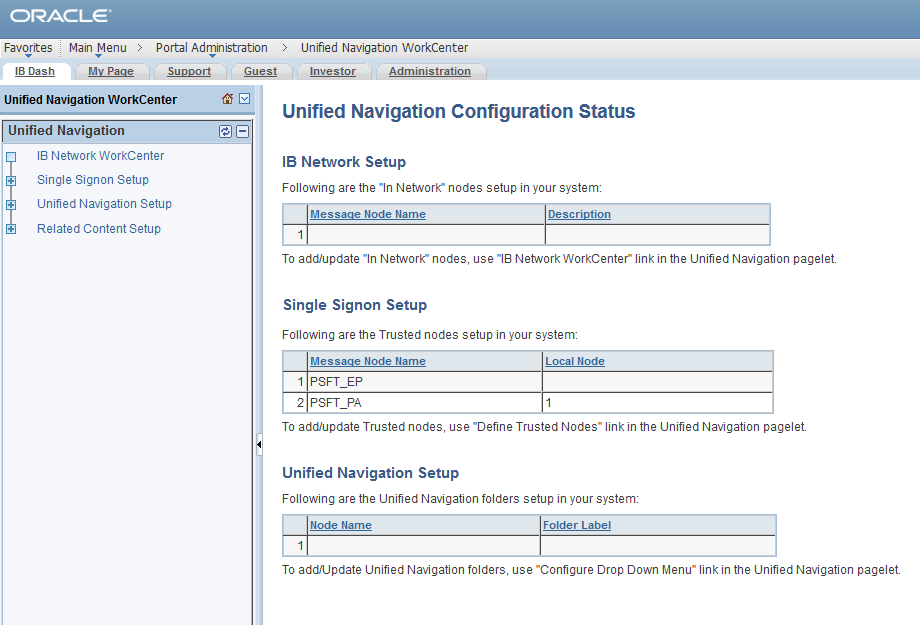
Using the Unified Navigation WorkCenter makes configuring this feature pretty easy to set up.  And it certainly does seem to take care of the mess of managing security and content references between all your systems.  Oracle has put quite a bit of effort into making the configuration of Integration easier.  With the introduction of the IB Network WorkCenter, configuration of IB has been simplified.  Setting up Unified Navigation leverages the IB Network WorkCenter and the new Unified Navigation WorkCenter.
Before getting started, lets go over a few details.  Keep in mind I am not an Oracle representative and the information I’m providing  in these next bullets is only rehashing item’s I’ve seen in information published by Oracle.
1.  Unified Navagation requires a full fledged license of PeopleSoft Applications Portal if your running PeopleTools 8.52.
2.  PeopleTools 8.53 modified the limited use license for PeopleSoft Applications Portal so starting with 8.53 you can now use Unified Navigation for free if you own PeopleTools 8.53, I don’t know if this is retroactive back to 8.52 or not, talk to your Oracle rep. or just upgrade
3. There are several limitations in 8.52, I’ve not found documentation indicating that there was any change to these limitations in 8.53 yet.  These are described in more detail in the PeopleSoft Applications Portal 9.1 PeopleBook: Portal and Site Administration
  • The full license was originally needed and may still be required.
  • Unified Navigation is not supported as a pagelet, although a pagelet does show as available, documentation indicates it is for use in the WorkCenter only.
  • Navigation to the content providers is supported through the drop-down menu only.  I’ve worked several places where clients have disabled the drop-down menu for their own reasons.  A lot of the time this is because they still have pre 8.50 releases and want to keep a more uniform appearance.
  • Some files may need to be copied to the portal system: Any remote pagelet icons needed and CSS files (only if the portal and contenent provider don’t use the same style)
  • Unified Navigation is only supported for like portal types (EMPLOYEE to EMPLOYEE, CUSTOMER to CUSTOMER, etc.  not EMPLOYEE to CUSTOMER)
  • Character limitations on remote folder names are: { } #
  • Can not add subfolders to a unified navigation remote folder (it looks like you could do that, but it’s not supported).
  • Templates for remote CREFs and remote Dashboards need to conform to standards that are outlined in the Applications Portal 9.1 PeopleBook: Portal and Site Administration
4. Documention indicated that this function could work with Content Provider systems at 8.50+ however other information points to all systems needing to be at least 8.52.02 or later.
Okay, on to the real work.
I will be assuming that your environment is already functioning in a pre 8.52 state.  That is, that IB is setup properly to do the following:
  • Gateway(s) are setup properly
  • Nodes are configured and authentication type is set
  • Single Signon is already configured and working
  • Old methods of Portal Navigation already work
Before I started I did some sanity checks on my environment.  Could I ping all nodes and did the original method of Single Signon work?  I used the PeopleSoft > Financials Supply Chain PT8.4x link to test and it popped me right in to Finance just like I would expect.  Also I tested the Portal Administration > Test > Single Sign On > User Profiles link for my content database. Another success, with that we should be good to start.
Some additional configuration steps are required before we move forward.
  1. Ensure the authentication domain matches for all systems involved
  2. Unified Navigation requires the “generate relative URLs” option be turned off on the Virtual Addressing page of the web profile in use.  This is on by default in all the delivered web profiles as far as I know.  Disable it on all systems involved and restart the web server or use the reloadconfig  command if you have that set up.
  3. All systems require the drop-down menu to be enabled, as previously stated it only works with the drop-down menu, not the pagelet menu on the left hand side.  Enable it if you have disabled it.
  4. On the content provider side a default user id must be set on the ANONYMOUS node, the user should be in both the content and portal system.  Oracle recommends that it be a very low priveleged user.  This also could impact pre-existing configuration required for integration. If your not already using the ANONYMOUS node, I recommend creating a new user for this purpose.  Give this user id access to run the PTUN_SSOTESTER service operation.
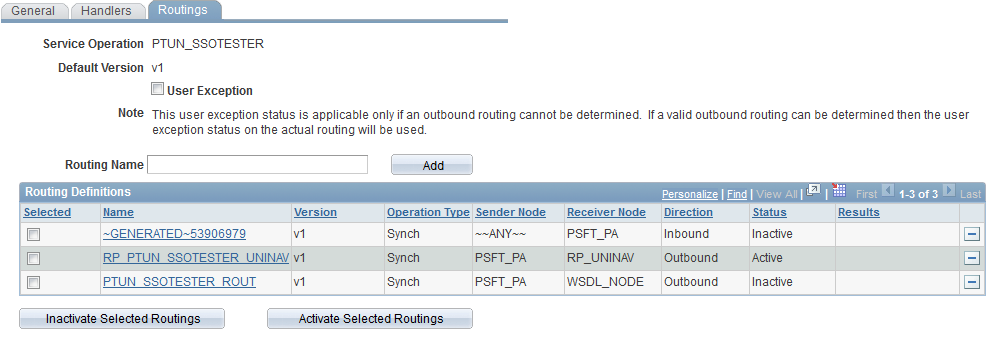
  5. On the portal side, create a new node for the PTUN_SSOTESTER sevice operation, copy an internal node to fulfill this. The settings should be confirmed: active = yes, segment aware = yes, authentication option = none, WS Security authentication token type = none, routings = none.  Once the node is created, create an outbound routing for the PTUN_SSOTESTER service operation to your new node.  Deactivate the routing to the WSDL_NODE if it is activated.
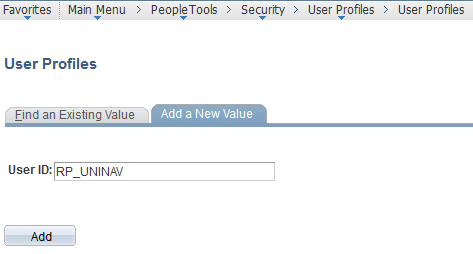
1, 2, 3, I took care of easily enough. For 4, I created a new permission list, role, and user specifically for this purpose and assigned that user to the ANONYMOUS node, changing it from the PSADMIN user which is delivered.  I added the user without any role and permissions to the portal system.
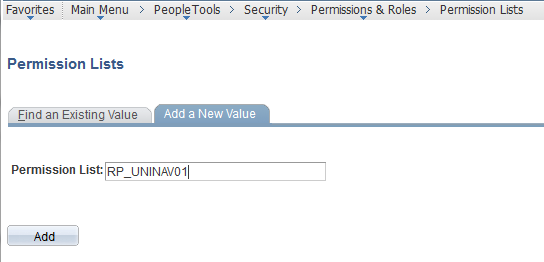
UNINAV permlist
Create a Permission List
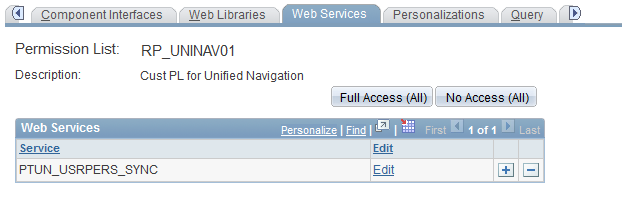
UNINAV permlist 2
Add the PTUN_USRPERS_SYNC Service
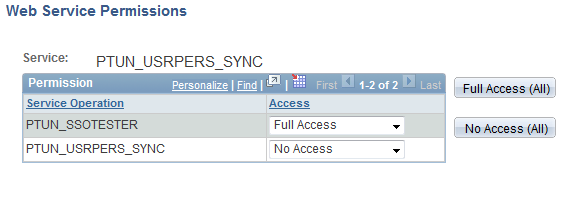
UNINAV permlist 3
Edit the Permissions and set PTUN_SSOTESTER to Full Access
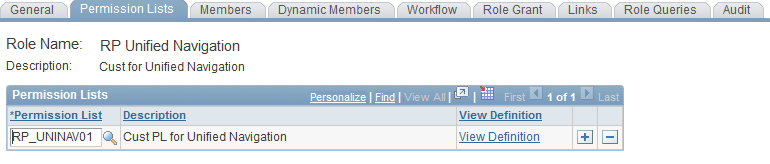
UNINAV role
Add the new Permission List to the Role
UNINAV User
Add the new User
UNINAV User 2
Add the Role to the User
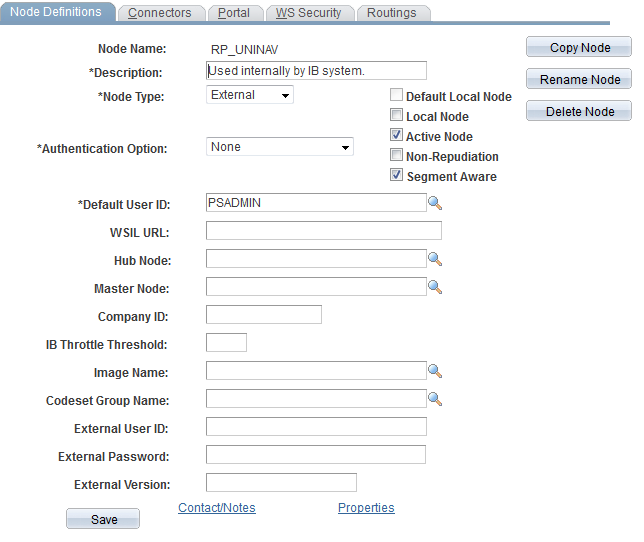
For number 5, I copied the ANONYMOUS node to RP_UNINAV.  By default, the node was active, segment aware, and had an authentication option of none.  The WS Security authentication token type was also none.  If for some reason you’ve changed these on the node you copy from you’ll need to update them.  I verified no routings existed on the node and proceeded to edit the PTUN_SSOTEST service operation.  I inactivated the existing active routing on the WSDL_NODE and added a routing for my new node.
UNINAV node in portal
Create a new node in Portal
UNINAV routing
Pull up the PTUN_SSOTESTER routings
UNINAV routing 2
Deactivate the WSDL_NODE routing and add a new one for your new Node
In order to proceed further, we need to start making configuration changes that, at the moment, I’m not that found of, mainly because it appears we need to use the new IB Network.  I may add reference to why I’m not thrilled with this later.
In both Portal and your Content systems navigate to PeopleTools > Integration Broker > Integration Network.  If your like me and this is your first time here, even though things are running fine, you’ll most likely find that it says the Node Network is Not Configured.
IB Network Config Status 1
Click the link, click save on the following screen, return to the configuration status and things should be good to go.  Saving at that screen officially updates the IB_NETWORK status for the default local node for the first time if it hasn’t been updated by something else already.
IB Network Config Status 2
If after returning the status is still not configured, go back and make sure read the notes at the bottom, at a minimum you must have the default local node configured and part of the network, the integration gateway secure keystore must be set, and any nodes configured but not in the local gateway must have a remote gateway configured.  Look to make sure it’s detecting that your secure keystore is setup properly, there will be a checkmark in the Secure Keystore Value Defined in the top left of the page.  Last I knew Oracle was still delivering the keystore password unencrypted and you had to change that to fix it.  Going forward with PeopleTools 8.53 I believe they are prompting you during install for these passwords.
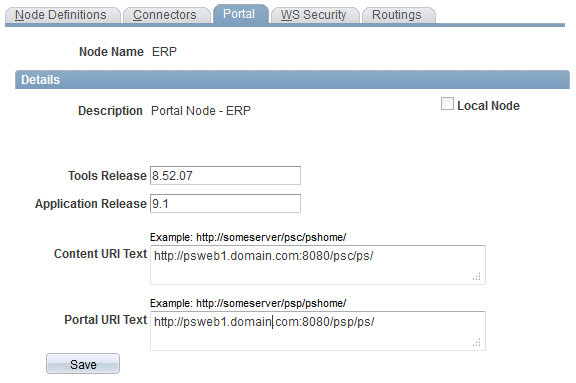
I’m setting this up in Portal and Finance, therefore, in Portal I should have PSFT_EP setup as a remote messaging node and ERP setup as a portal node pointing to Finance.
portal node config
Conversly in Finance, I would setup PSFT_PA as a messaging node and EMPL as a portal node pointing back to Portal.  I already had this done, as I said this was an already working environment, so nothing for me to change here.
Tthe documentation indicates that these Portal nodes must be added to the new Integration Network facility in order to complete the configuration.  The only way to add them though is to add them to a Gateway (either local or remote).
Unified Navigation WC 1
This appears to only be required on the Portal side.  I added ERP to the gateway that Portal was using, and then was able to add it to the IB Network.  After I added it to the network it was available to choose for the Drop Down Menu configuration and SSO test.  I did not add EMPL to a gateway or IB Network on the Finance side and things worked just fine.
SSO test ERP
After adding the corresponding portal node(s) to your gateway(s), add them to the Integration Network.  Once that is complete, go to Portal Administration > Unified Navigation WorkCenter, expand the Unified Navigation Setup section and test the single sign-on to the Portal node (ERP in my case).  After the test completes successfully, move on to Configure Drop Down Menu.  Select the portal node reference, you’ll notice, only nodes in the Integration Network are available for this selection, thus driving the need to actually add these portal purposed nodes to the gateway as I mentioned previously.  For Folder Label, specify a name you like, such as, Finance Menu or PeopleSoft Finance 9.1.  Folder Name is the content provider menu navigation to share, use the lookup button and the returned tree to select what to bring over.  This allows you to do partial or full menu, for instance, my example does the full tree, but you could choose to do three individual subfolders, and set them up independently.  Local Parent Folder Name is the same as Folder Name but it’s the corresponding location to place the menu on the Portal side.  They are pretty self explanatory.
Drop Down Menu Config
And here is the final product, note the Fianance Navigation at the top of the drop down menu expanding all options since I’m logged in as an admin.
FIN Nav menu
This is a pretty nice update in my opinion.  Doesn’t take long to setup, especially if you already had things working, and is much cleaner than moving CREF’s and security around to provide navigation.

Thursday, 4 February 2016

Change Oracle logo to your company's logo in Peoplesoft page

Change Oracle logo to your company's logo in Peoplesoft page :-

Please perform the following:

1) Using app designer(ENG), open the stylesheet DEFAULT_THEME_TANGERINE_ALT, then search for logo and you should be able to see the following code.

/********************
* Logo
********************/
#pthdr2container #pthdr2logoswan:before {
content: url(%Image(PT_ORACLELOGO_ALT)); =========>>>> Here you can use your custom logo name
width: 130px;
}

2) Create a copy of the delivered objects. For example, PT_ORACLELOGO_ALT(create a project and insert this object to the project, save it then export it to a file)

3) Now save your new image as given in step#1 (please note delivered logo PT_ORACLELOGO_ALT dimension - 113*55 ==>> use the same size for your custom/company logo)

(or)

2) Go to PeopleTools > Portal > Branding > Branding objects. Go to Image tab and click ‘Upload Image object’. Make sure the image dimensions are same as delivered one 113*55
3) In the Modal window,
Name: PT_ORACLELOGO_ALT
Description: Oracle header logo
Image Type: JPG files
Click button "Save"

4) Open PSSTYLEDEF_Tangerine stylesheet, then double click on PSHDR2_SWAN_CSS3. Now search for logo, see the code changes performed with comment /*custom logo*/as below

apply in the target environment.

/* company logo div */
#pthdr2logoswan {
float:%AlignStart;
width: 113px;
height: 55px; /* new for hover menu */
margin:0;
/*position:relative;
top:-29px;*/
padding: 0 5px 0 0;
background:none;
}
#pthdr2logoswan:before {
content: url(%Image(PT_ORACLELOGO_CSS));
/*left: 4px;*/
left: 2px;/*custom logo*/
position: relative;
top: 2px;/*custom logo*/
/*top: 17px;*/
}

5) Stop your App and Web servers.
6) Clear the cache for App and Web servers. Restart them both.
7) Log into PIA again with clean browser cache to view your custom logo.

Wednesday, 13 January 2016

PEOPLETOOLS 8.54 NEW ENHANCEMENTS AND FEATURES:-

 
Oracle has released PeopleTools 8.54 a month back and as of now it is also available with the PUM image for HCM and FSCM.
Peoplesoft has come with many changes with PeopleTools 8.54 and I would try to list out important ones.
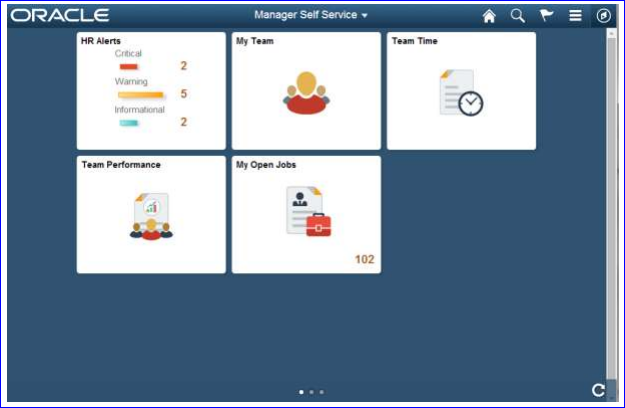
Fluid pages


The usage of mobile phones and tablets have changed drastically in recent times.
PeopleSoft embraces this change and comes with many new concepts primarily targeting the mobile devices.
With this release PeopleSoft introduces the PeopleSoft Fluid User Interface.
This is a significant improvement over the PeopleSoft “classic” user interface, the PeopleSoft application fluid pages scale gracefully from large screen devices, such as laptops and desktops, to the reduced viewing space of tablets and smartphones whereby the presentation and layout of information is adjusted dynamically to conform to the dimensions of the user’s device.

PeopleSoft fluid page definitions are maintained within PeopleSoft Application
Designer, and the application developer will have the ability to define and apply conditional formatting appropriate to smartphone, tablet, or large-screen devices.

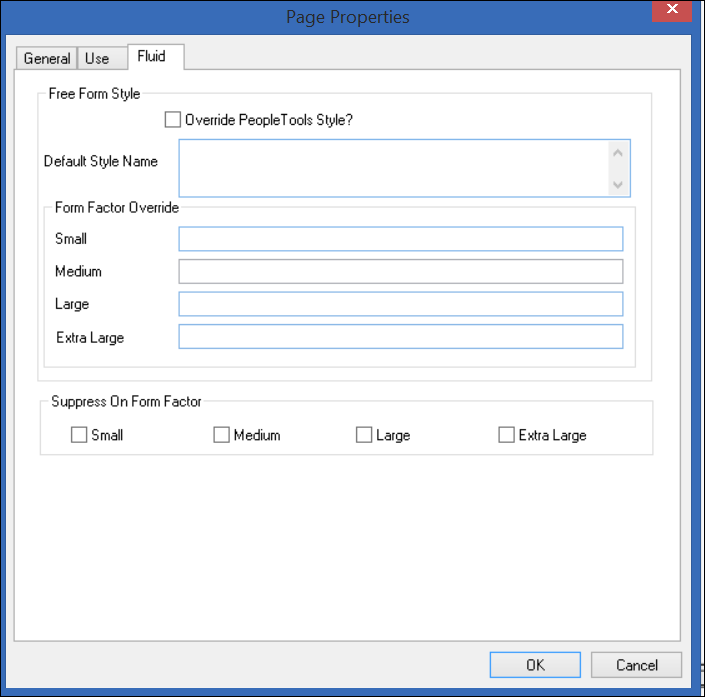
So to check this on, I created a new page in App Designer.
When I clicked on properties of the page, we have a new tab here ‘Fluid’.


It will take some time and practice for us to get used to all these field to know their significance.
So we will leave it as it is.

In case you want to learn to more about this tab, please refer Peoplebooks.

64-Bit Development Client

With PeopleTools 8.54 the Development Client is now built as a 64-bit application, taking advantage of
higher memory addressing and improved performance.
The following applications run on the Development Client and are impacted by this enhancement:
  • Application Designer.
  • Data Mover.
  • Change Assistant.
  • nVision
  • Change Impact Analyzer
  • Application Engine.
  • SQR.
The move to the 64-bit bit architecture of the PeopleTools development environment means that
system administrators no longer need to acquire and configure the additional 32-bit connectivity
software for the RDBMS platform.

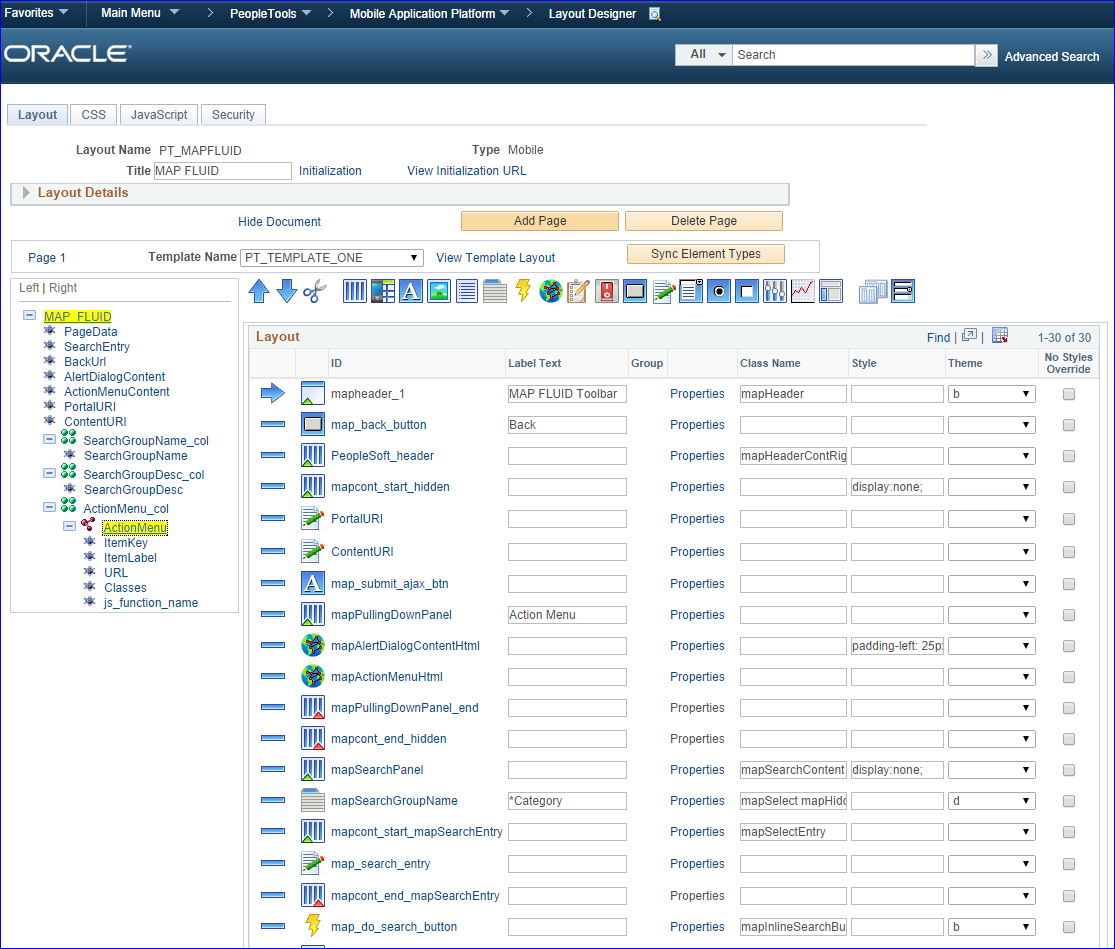
Mobile Application Platform

With release 8.54, PeopleSoft is delivering, for the first time, the ability to create a responsive user
interface using standard technologies such as HTML5, cascading style sheets (CSS3), and JavaScript.
Applications built using the Mobile Application Platform (MAP) will provide a completely different
experience than those built using traditional PeopleTools components and pages. Applications built with
MAP can include media queries that allow applications to scale from Smartphones, to mini-tablets, to
full-size tablets, and that adjust the user interface for the device perspective that is being used. The
framework allows you to develop applications with touch interfaces that look and operate similarly to
native interfaces on mobile devices.
MAP supports a web-only development model for the majority of the application development. The
document-based data structures, page layouts, and styles are all defined in the PeopleSoft Pure
Internet Architecture. Business logic processing is done through PeopleTools application class
PeopleCode built in PeopleSoft Application Designer. Additional user-interface libraries can be easily
plugged in and accessed on pages.
While MAP is similar in many ways to the PeopleSoft Fluid User Interface delivered with PeopleTools
8.54, there is a single major difference. That difference is that MAP reads and writes data through
RESTful web services that pass through the integration gateway and provide the communication layer
between MAP applications and the database.
Using RESTful services as the foundation of the framework offers these significant differences:
Since all parts of the application are based on REST services, an open integration model that
enables an application to navigate from one application to another, including third-party
applications, is inherent in the design.


Application Engine

Application Engine Trace File Enhancements
PeopleTools 8.54 will include the following features to streamline Application Engine Trace files.
Application Engine trace file split.
You can set the file size of the Application Engine Trace file. Whenever the file size exceeds the
defined file size value, the file will close and the log will shift to a new file. Application Engine trace file naming convention.
The naming convention for the Application Engine Trace file with a process instance will include the
Date/Time stamp.
Application Engine program section trace.
In previous versions, the trace file included output of the Application Engine program with all the
sections. From this release you can select the sections to trace output in the Application Engine
Trace file.
Application Engine trace file with PeopleCode and SQL trace outputs.
You can combine the trace output for both PeopleCode and SQL into Application Engine Trace file.
Also for 8.54, it will be optional to commit changes in the Application Engine program to the database.
You can opt not to commit the changes for application engine program to the database, if the
application engine program is running from Application Designer.


Global Temporary Table in Application Engine

PeopleTools 8.54 extends the potential of Oracle Global Temporary Tables (GTTs) to Application
Engine.
In 8.54, you can define Temporary Tables as GTTs in the Application Designer. This feature can be
applied to Application Engine programs running in both batch mode and online mode. The data in GTT
is session specific for Application Engine programs running in batch mode and transaction specific for
Application Engine programs running in online mode. But GTTs in online mode cannot be shared
between Application Engine programs. Each Application Engine program has its own set of GTTs.
Therefore, it is recommended that GTTs should not be used as Share Tables in online mode. You can
also define GTTs to re-startable batch Application Engine programs considering that the data in GTT
will not be retained when the program exists.
Prior to 8.54, a warning was displayed whenever the number of instances of a temporary table
exceeded 99. From 8.54, you can set the number of instances to a maximum of 9999 when the
Application Engine program uses only GTTs in temporary tables. If the Application Engine program is
using both GTTs and temporary then a warning is displayed when the number of instances exceeds 99.


Portable PS_HOME
PeopleTools has focused on a number of enhancements related to PS_HOME in recent PeopleTools
releases to make PS_HOME more secure, with a clearer separation of functionality. It began with
providing a more secure installation by splitting out logs, cache and configuration files into
PS_CFG_HOME, which allowed PS_HOME to become read-only. From there, we created
PS_APP_HOME to split the PeopleTools and PeopleSoft application objects apart, thus removing any
ambiguity of which objects are changed during a PeopleTools vs. application upgrade, or during the
application of maintenance. PS_CUST_HOME arrived with PeopleTools 8.53 and provided a
mechanism to separate any customized code (COBOL, SQR, and so on) from delivered code.
With PeopleTools 8.54, the latest enhancement involving PS_HOME, Portable PS_HOME, will provide
an easier way to use a private cloud configuration where multiple application installations use the same
PeopleTools install. Hard-coded paths and symbolic links are removed, which will allow the install of
PeopleTools to be more easily copied to other servers. UNIX file servers can create a mount point to
use the installation with any number of environments. With a single PeopleTools install being used with
multiple application installs, procuring an environment becomes faster and cheaper. In addition, when it
is time to apply maintenance, it is quickly performed in one place instead of in each separate
environment, thus lowering the total cost of ownership.

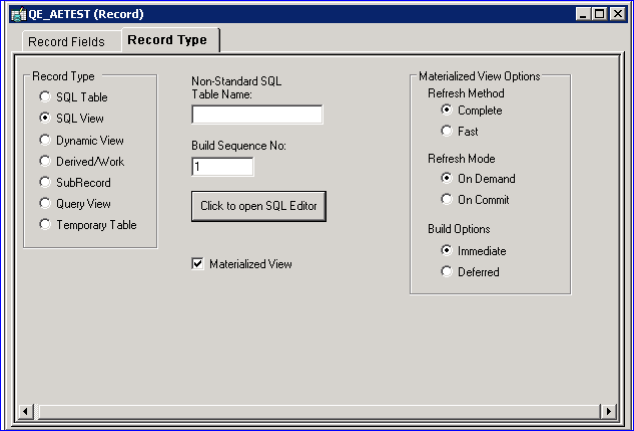
Oracle Materialized Views
Materialized views take the results of complex SELECT statements and save the datasets to disk. The
results are then readily available without the need to run the SQL each time. The SELECT statements
typically defining materialized views often contain sizable tables, complex joins, and summary functions
that may take some time and computing resources to complete. By running the SQL once and saving
the results to be used and reused, a significant savings of CPU and memory consumption can be
achieved. Materialized views provide significant improvements in performance when used in Pivot Grids
that do not use frequently updated data sets. The data is refreshed on a time period defined in the
materialized view.
PeopleTools 8.54 enables potentially significant CPU savings by using materialized views for the
Oracle database. Application Designer will have the ability to declare and define materialized views
(including the data refresh period) for use within PeopleSoft applications.


Chart Class Enhancements

In PeopleTools 8.54, the Chart class has been enhanced with these features and other features not
listed here:
Reference areas – A reference area can be displayed in conjunction with a chart as a band of color
drawn based on numeric values along a chart axis. For each band of color, you would create a
separate instance of the ReferenceArea class.
A bar chart with a reference area displayed behind the chart

->Reference lines – A reference line can be displayed in conjunction with a chart as a colored line
drawn based on a numeric value along a chart axis. For each line, you would create a separate
instance of the ReferenceLine class.

->Funnel charts – A funnel chart typically graphs two sets of data: actual amounts versus target
amounts.

A funnel chart displaying actual data versus target data

->Line smoothing – Using the IsLineChartSmoothing property allows line charts to be displayed with
smoothed lines.

->Interactive charts – Using the IsChartDrillable property, the chart background (that is, the entire
chart control) can be made interactive. (This is in addition to the chart data points, which can
already be made interactive by using the IsDrillable property.)

PeopleSoft Pivot Grids
Since their release a few years ago, Pivot Grids have become a valuable component of PeopleSoft’s
rich reporting and analytics toolset. With PeopleTools 8.54, our teams continue to enhance this
important technology to become an integral element of the PeopleSoft user experience.
As mentioned, the PeopleSoft Fluid User Interface takes advantage of Pivot Grids both on the new fluid
homepage tiles as well as the basis for the new component search framework used for fluid
components. These new capabilities ensure that visual insight and analytics are woven directly into the
fabric of the PeopleSoft application, rather than merely graphics pasted onto a page.
PeopleTools 8.54 brings a number of extremely important new features to PeopleSoft Pivot Grid:
  • Setting the limit of the Pivot Grid result rows.
  • Viewing PSQuery drilling URLs in Pivot Grid Detail View.
  • Scatter and Bubble chart types.
  • Attaching PeopleSoft Trees to dimensions.
  • Setting Column Type value.
  • Setting Aggregate value.
  • Setting currency formats.
  • Setting the Display As option.
  • Setting embedded help.
  • Specifying the display mode.Release Notes PeopleSoft PeopleTools 8.54
  • July 2014
  • Copyright © 2014, Oracle and/or its affiliates. All rights reserved. 49
  • Specifying the fluid mode options.
  • Expanding or collapsing all dimensions in the grid.
  • Configuring Pivot Grid Views using Pivot Grid Wizard.
  • Publishing Pivot Grid fluid views as grouplets.
  • Creating Pivot Grid models directly from Query Manager.
  • Setting row-level, aggregate, and bulk related actions.
  • Displaying all views in the Pivot Grid Viewer search page.
  • Resetting layouts.
  • Drilling down to details from the charts.
  • Using Component Real Time Search in Pivot Grid fluid mode.
  • Creating component Pivot Grid models using Pivot Grid Wizard.
  • Viewing Pivot Grid models in fluid mode.
  • Using the Component Real-Time Search and viewing Pivot Grid models in mobile interaction
  • platforms.
  • Embedding Pivot Grid fluid subpages in application pages.
  • Copying the fluid components between databases.
  • Preserving Pivot Grid configuration and personalizations.

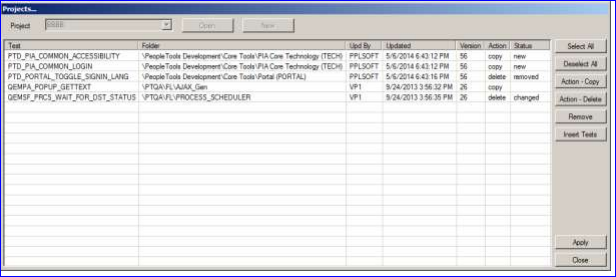
PeopleSoft Test Framework

PeopleSoft Test Framework (PTF) enables customers to automate testing with a tool that integrates
with and has firsthand knowledge of PeopleSoft metadata. Enhancements for PeopleTools 8.54 focus
primarily on providing smart automation, which is all about running the tests that need to run in the way
that they should be run based on what has happened in your application.
By improving integration among PeopleSoft Test Framework, PeopleSoft metadata, and lifecycle
management reports, in release 8.54, you will now be able to easily determine which tests require
modification and which tests need to be run.
Changes to PeopleSoft Test Framework also include many usability enhancements for creating,
administering, recording, and executing tests.
Branding Framework
PeopleTools now provides a greatly expanded branding framework that is powerful and flexible,
bringing the capability of managing the look and feel to the PeopleSoft application without requiring
PeopleSoft Interaction Hub. With PeopleTools 8.54, many common branding activities, including
managing content associated with the overall site style, are now performed online rather than requiring
the use of Application Designer. In addition, PeopleTools supports component-based branding,
providing the ability to apply a consistent appearance when rendering content from multiple providers
on the same page.
With PeopleTools branding, common actions, such as layout manipulation, style sheet and image use,
and JavaScript injection, can be managed online through the browser. For example, these tasks can be
easily performed within the delivered online pages:
  • Manage configurable header and footer layouts.
  • Assemble branding themes, and assign those themes by portal or by user attributes.
  • Preview style changes online.
The purge process did not run because the Oprid configured to start the Process Scheduler did not have the required permissions to run the purge process.

  Purge process - Required permissions The PeopleSoft Oprid used to start the Process Scheduler, as defined in the Scheduler's psprcs.cf...